Animate Lab Exercise #1: Getting Started with Animate
Prerequisites:
1.
Create a folder on your desktop called Exercise-1
2.
Download the attached Chapter1_HTML5 Canvas.fla file to
your folder.
Requirements:
1. From the Main Menu, select File, Open and
then choose the Animate file- Chapter1_HTML5
Canvas.fla from your Exercise-1 folder
2.
Open the Properties Windows. From the
Main Menu, select Window and then Properties.

Ensure the Properties panel is
docked. If not docked, move the
Properties Panel
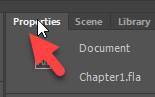
In the Properties panel window,
adjust the document Properties by changing the following settings:
a. Change the frame rate
to 31 fps (circled in green)
b.
Change the stage size width and height to 500 x 450 (circled in blue)
c.
Change the Stage to Yellow color.
To change the color, click on the Stage pallet button (circled in red)

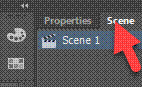
3. Open and dock the Scene panel.
From the Main Menu, select
Scene. Or you can press Shift F2.

Move and dock the Scene panel
beside the Properties tab.
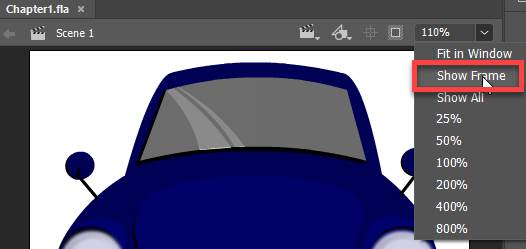
4.
Adjust the zoom by selecting “Show Frame” (see red arrow)
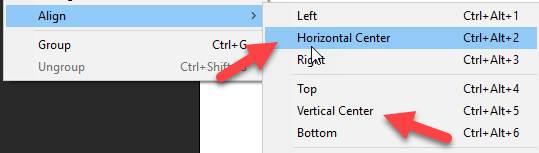
5. Align the image horizontal and vertically to
the center
From the Main Menu, select Modify,
Align and choose Horizontal Center
Go back then select Vertical Center
6. Activate the Animate rulers and turn on the
grid
From the Main Menu, select View and
then Grid

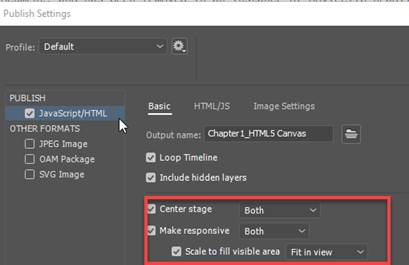
7. Publish your Animate file. From the Main Menu, select File and then
Publish Settings

Verify the Basic setting checkboxes
are selected.
Click on the Publish button at the
bottom of the Windows

8. Test your
Animate movie by pressing <Ctrl><Enter>. Or from the Main Menu, Select Control and
then Test

9. Verify your document has requirements. See attached sample of the Animate output
file-Chapter1_HTML5
Canvas.html.
SUBMIT:
1. Submit the screenshot of the output result in
step #8
On your keyboard, press <Print
Screen> and then paste into a Paint document. Save the file as a JPG
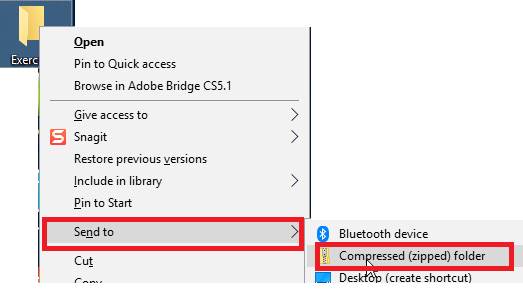
2. Zip up your
Exercise-1 folder containing the HTML, JavaScript, etc
including the subfolders
NOTE:
Right click on the folder and select Send to “Compress Folder”. The file will have a file extension of .zip. See steps below
3. Submit and upload the zipped up compress
Exercise-1 folder to the Canvas Animate Exercise Dropbox.